Nano Banana AI
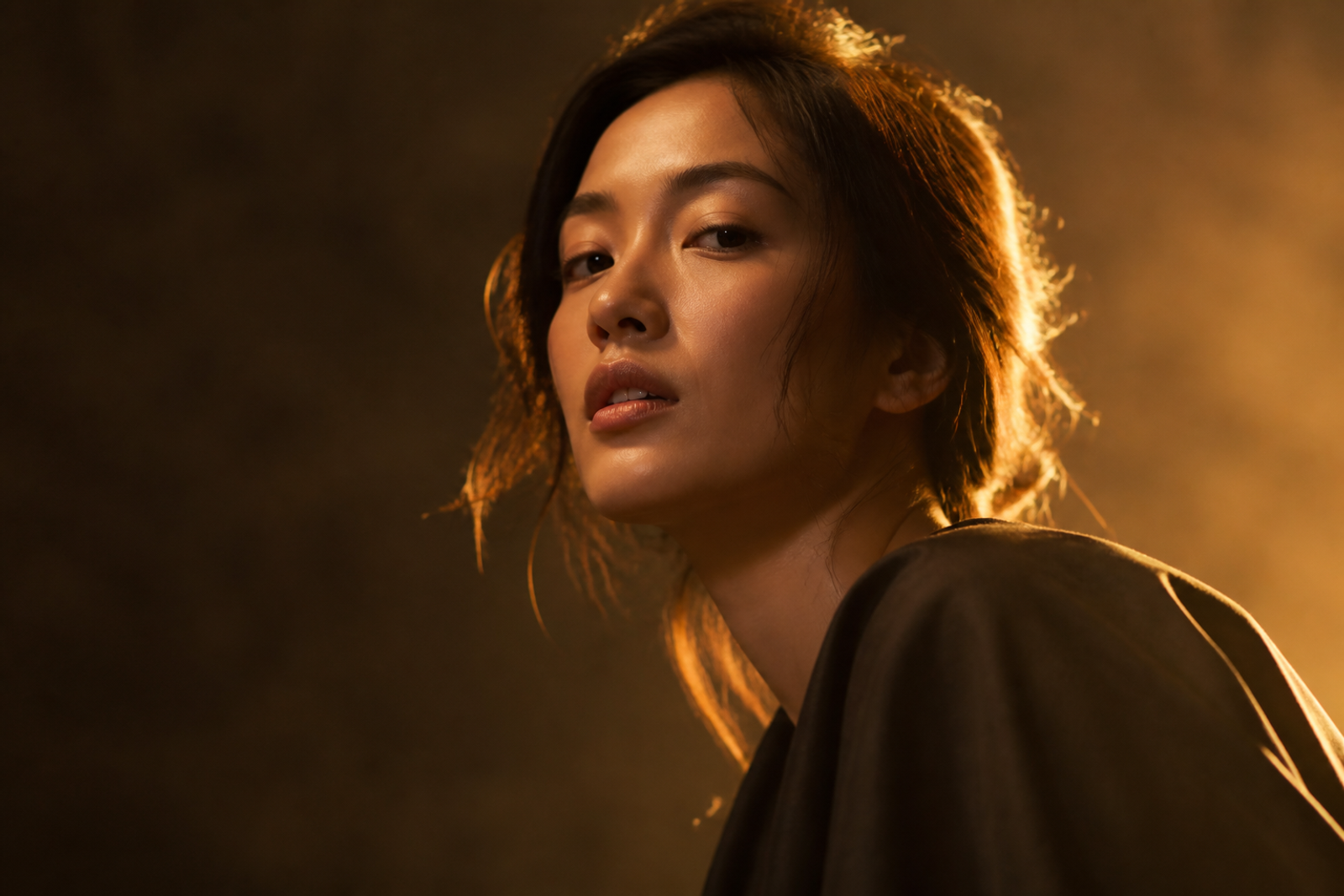
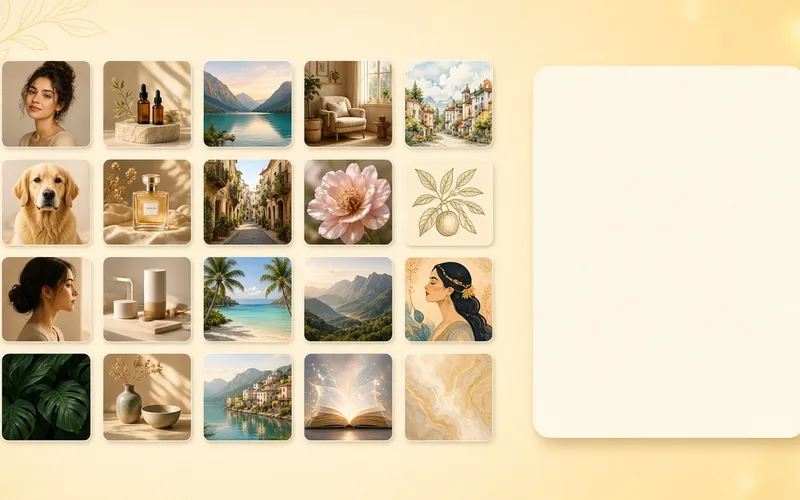
Photorealistic portrait
Illustration style
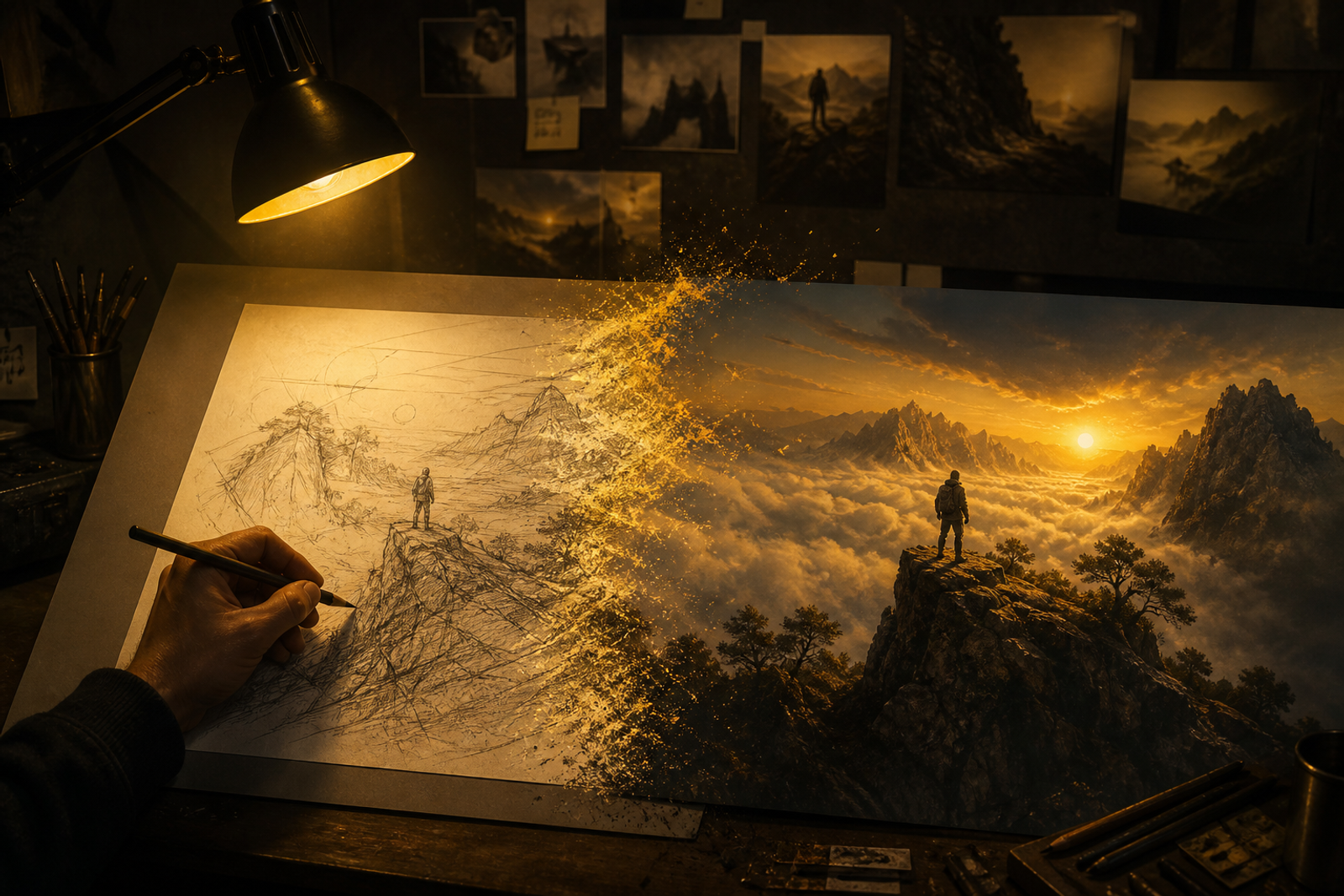
Concept art
Anime style
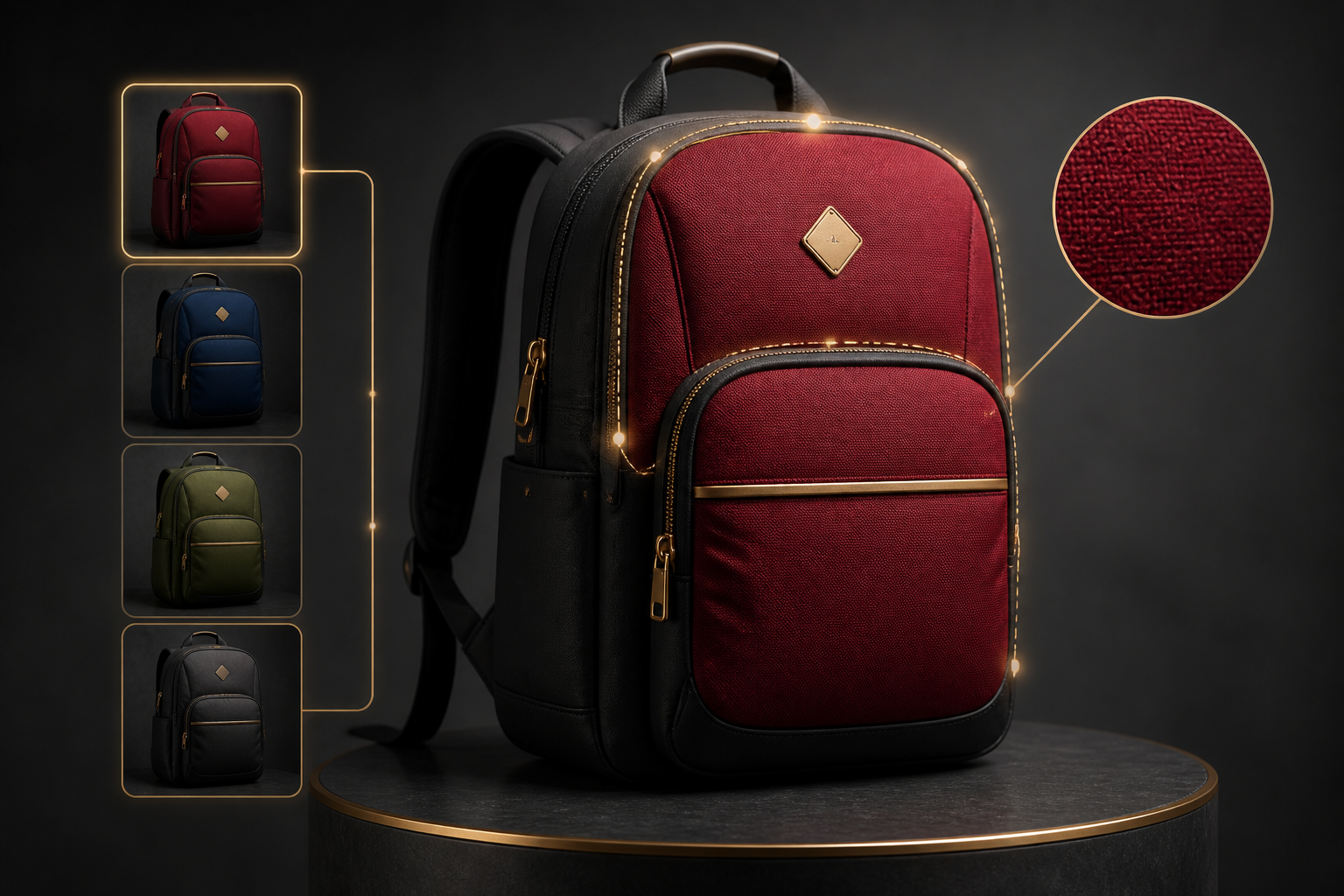
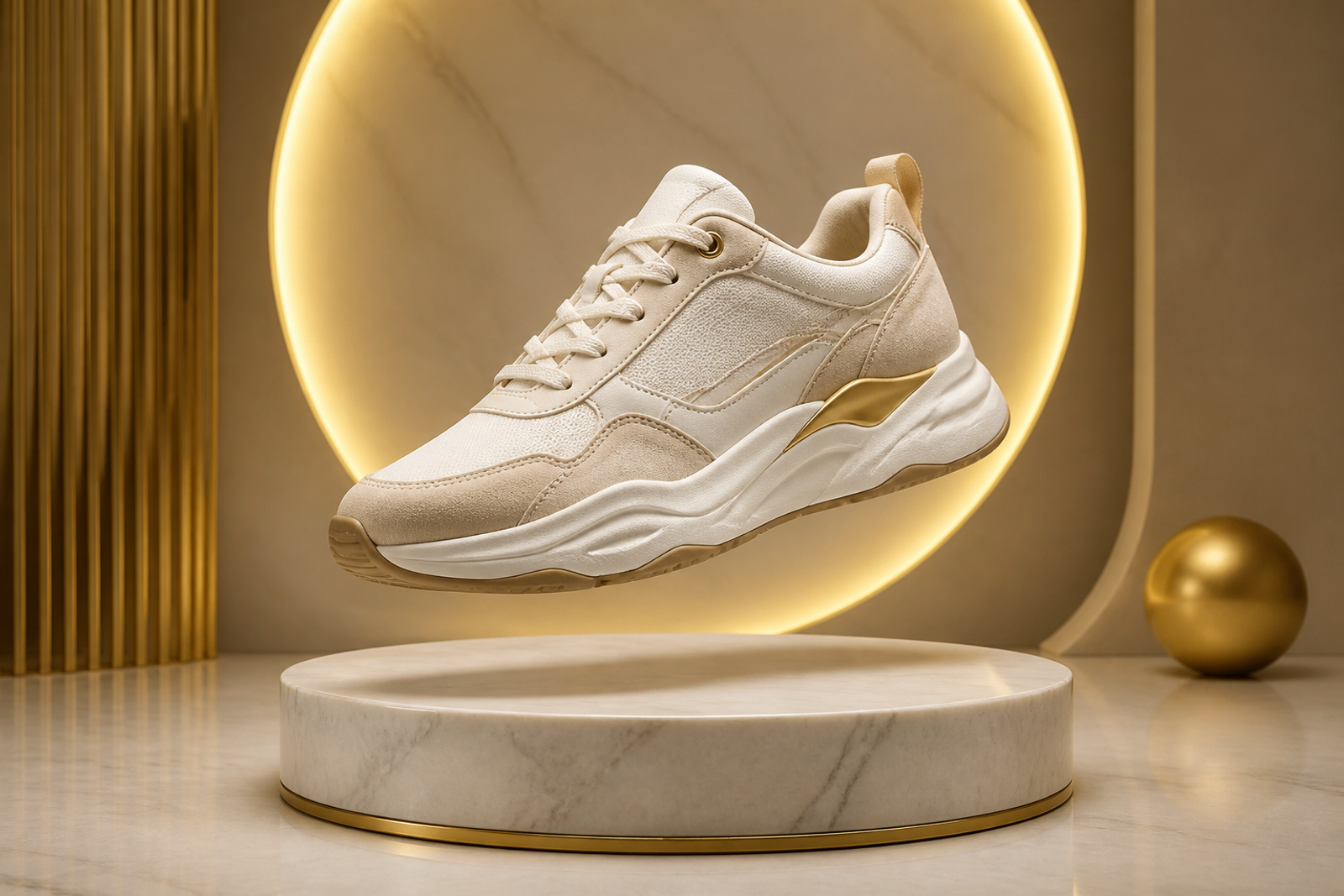
Product still life
Architectural space
Fantasy scene
Photo to figurine

Nano Banana AI Image GeneratorType words. Generate and edit art-ready images.

Powered by Gemini 2.5 Flash Image (Nano Banana): text-to-image, conversational editing, character consistency, and multi-image blend—turn ideas into controllable visuals with natural language.

Core capabilities

Six Nano Banana strengths for faster, more controllable creation

From text-to-image to conversational retouching—turn one sentence into the frame you want.

Nano Banana text-to-image example: cinematic portrait
01

Text-to-image: words become pictures

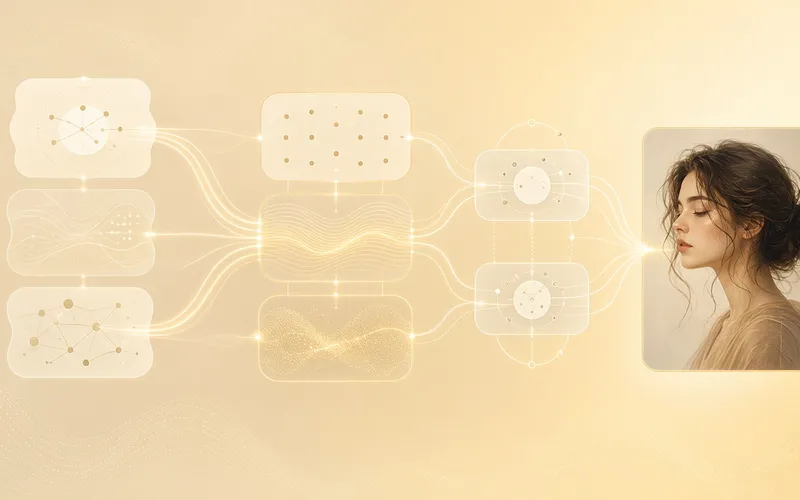
Nano Banana reads natural-language prompts with fine detail—light, materials, and composition. Whether photoreal portraits, concept scenes, or product stills, one clear sentence can yield a usable image fast.

  • Nuanced prompt understanding
  • Natural language friendly
  • Great for quick concept exploration
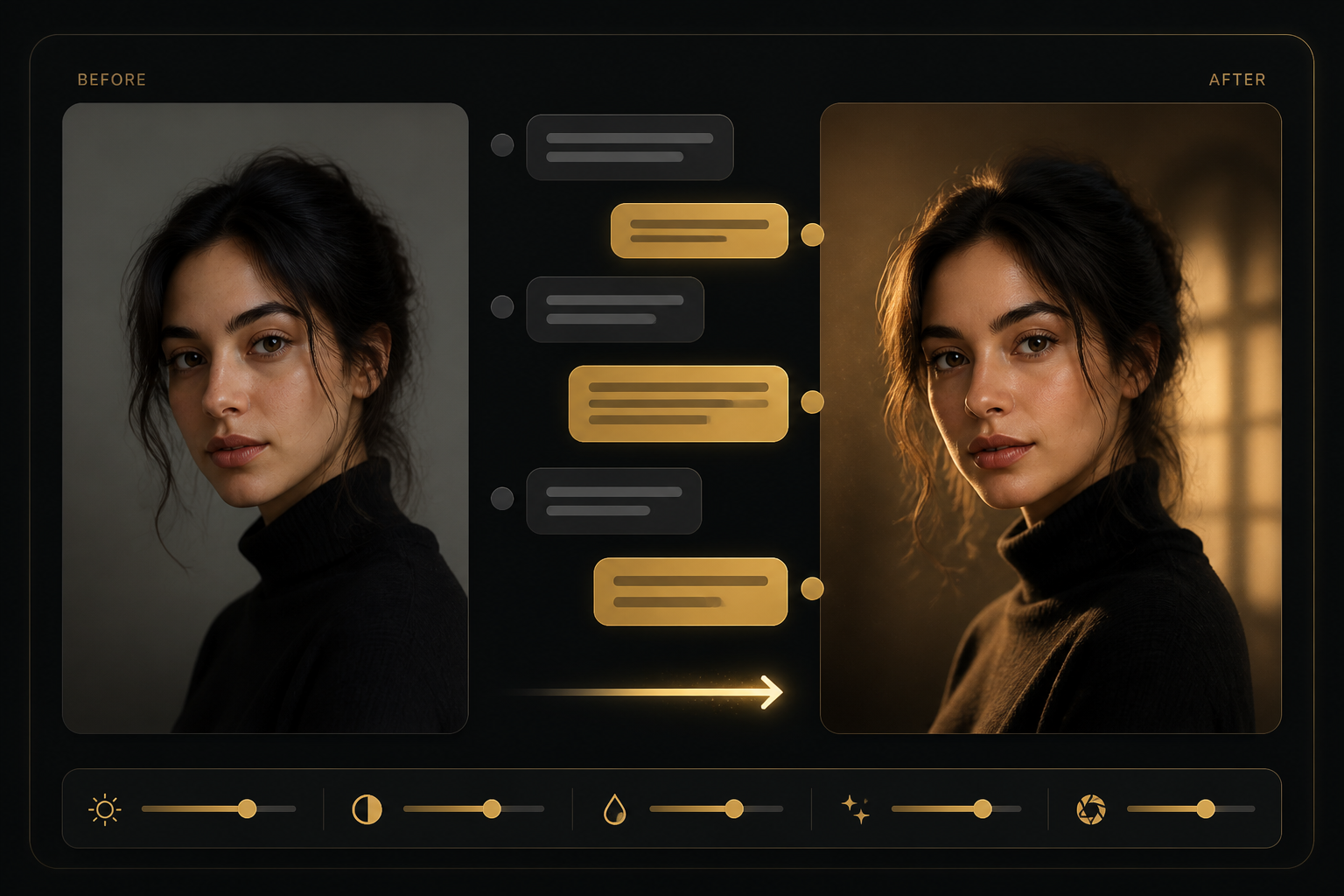
Nano Banana conversational image editing example
02

Conversational image editing

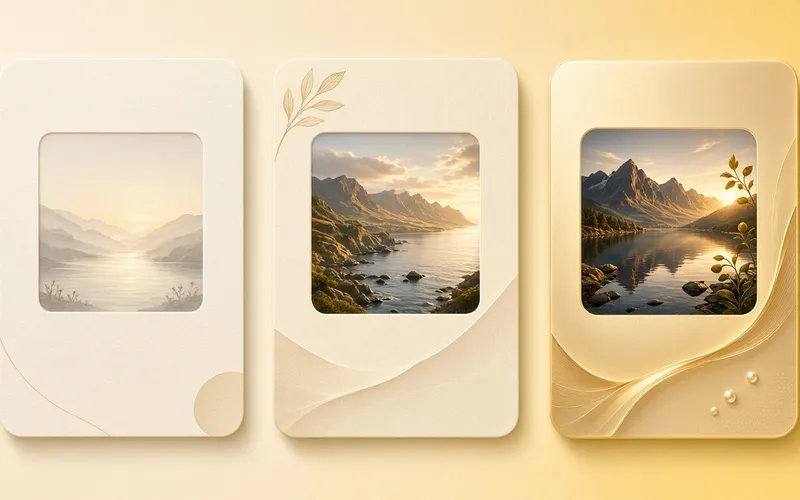
Keep refining with multi-turn natural language: swap backgrounds, adjust lighting, change pose, or add elements. No complex masks—iterate like a chat until the shot feels right.

  • Multi-turn iteration
  • Preserves image context
  • Lower editing barrier
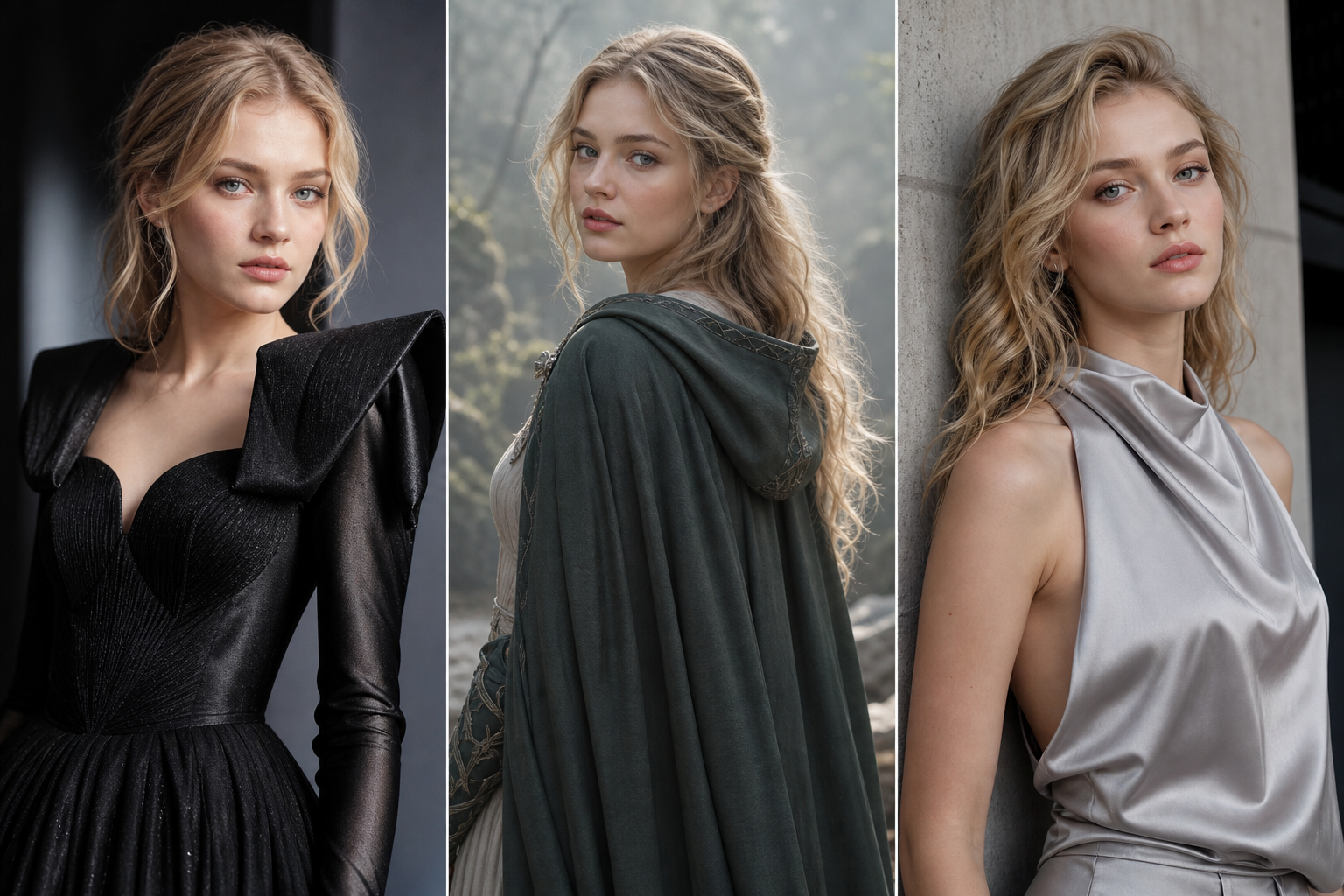
Nano Banana character consistency example
03

Character & subject consistency

Keep the same character or product looking stable across scenes, outfits, and camera angles—ideal for story series, brand assets, and visual systems.

  • Stable look across scenes
  • Fits character and product series
  • Less redrawing cost
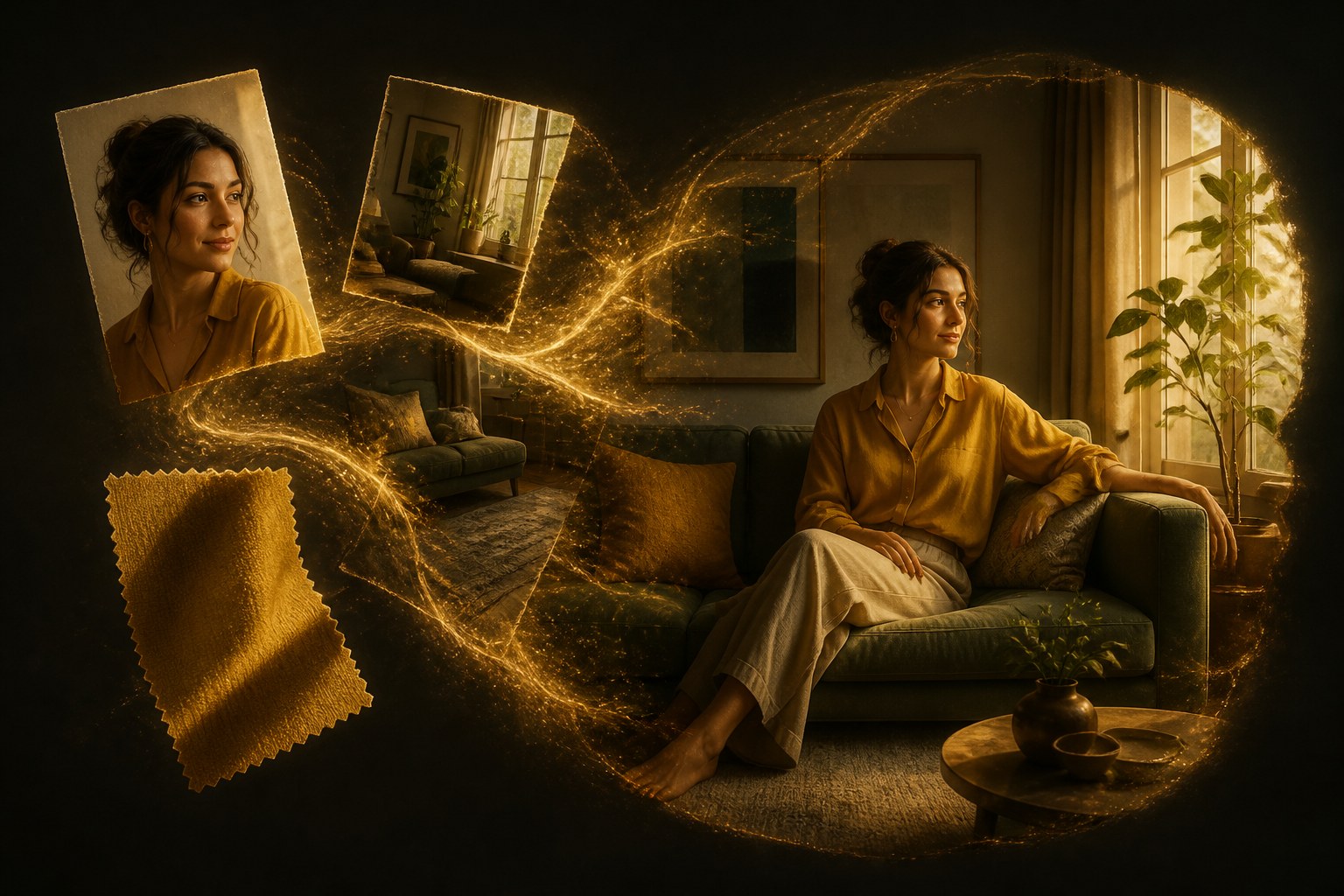
Nano Banana multi-image blend example
04

Multi-image blend & compositing

Upload multiple references and fuse people, products, materials, or scenes into one composition with a single instruction—collage, outfit swaps, scene placement, and more.

  • Multi-image input
  • One-sentence composition blend
  • Great for marketing and concepts
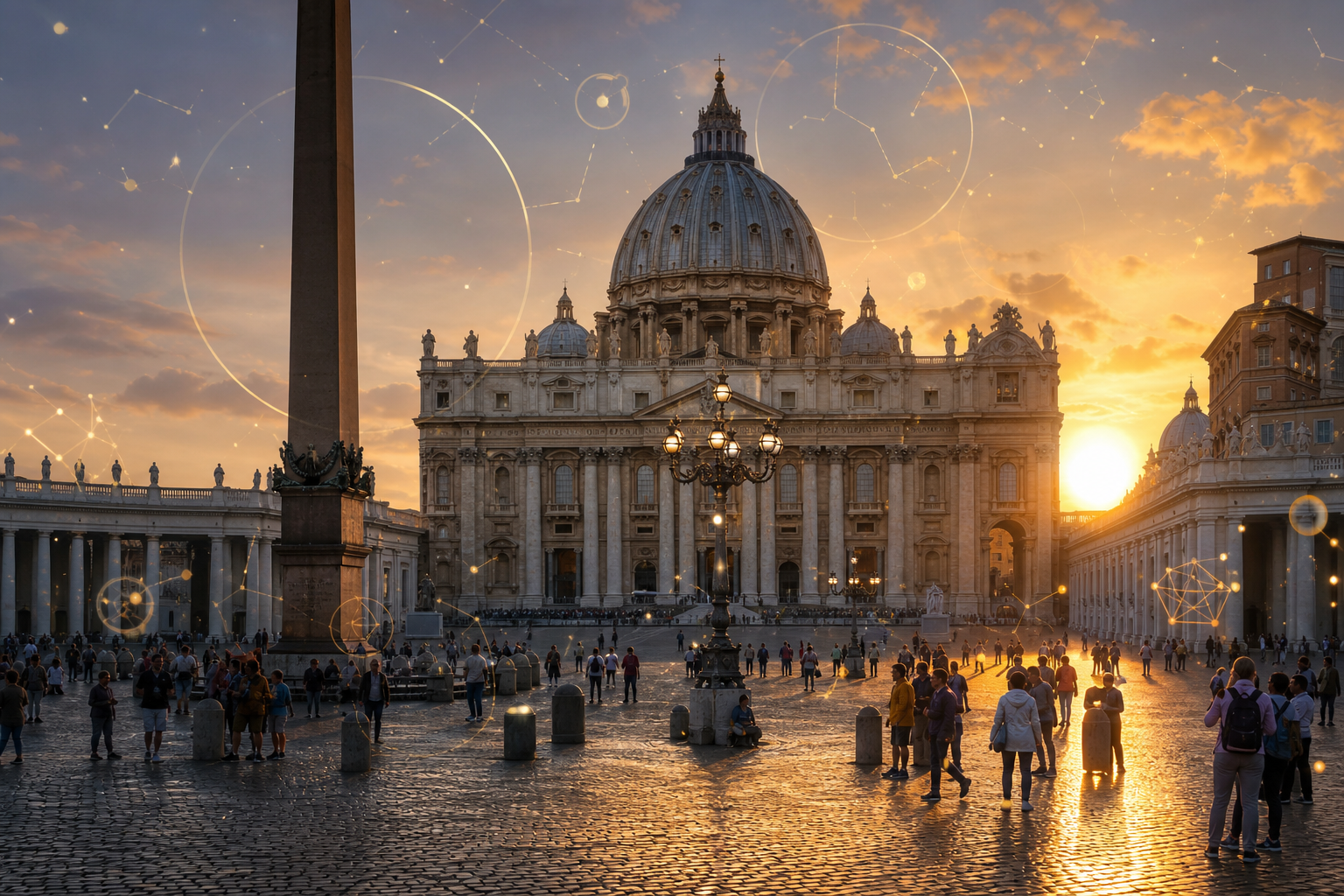
Nano Banana world-knowledge enhanced generation illustration
05

World-knowledge enhanced generation

Leverage Gemini’s world knowledge to understand places, styles, objects, and cultural context—so details feel grounded in real-world information.

  • Real-world context understanding
  • More stable complex instructions
  • Fits knowledge-rich visuals
Nano Banana precise local edit example
06

Precise local edits

Name the part you want changed in natural language: remove stains, recolor, blur the background, clear passersby. Local change, global stability—built for commercial retouch and late-stage polish.

  • Precise local changes
  • Keeps unspecified regions
  • Fits commercial post

Model & capabilities

In focus: Gemini 2.5 Flash Image

Nano Banana is a widely used nickname for Google’s Gemini 2.5 Flash Image model. It targets fast visual creation: text-to-image, conversational editing, and multimodal understanding in one stack—ideal for high-frequency iteration.

Image model

2.5 Flash

Text Prompt

Natural-language prompt

Describe subject, style, lighting, and composition in full sentences. The more specific the prompt, the closer Nano Banana lands on the first try.

Lead with the subject, then add style and light

Image Input

Reference image input

Upload one or more images as a starting point: edit from the original, or transfer people, products, and materials from references into a new scene.

Upload a reference when you have a clear look in mind

Multi-turn

Multi-turn conversational editing

Keep instructing in natural language on top of the last result. The model follows context and refines toward the final frame you want.

Change one thing per turn for steadier results

Consistency

Character consistency

Keep a character or product recognizable across shots and scenes—useful for storyboards, campaign series, and brand assets.

Lock the same subject reference for a series

Blend

Multi-image compositing

Fuse elements from multiple inputs into one result—place a person in a scene, restage a product, or wrap a material onto an object.

Say clearly who to keep and where to place them

Local Edit

Precise local modification

Add, remove, or change a named region: swap backgrounds, delete objects, adjust color. Unnamed areas stay as stable as possible, avoiding full redraws.

Name the target object clearly

Note: Nano Banana outputs may include SynthID or similar watermarks for content provenance. Quotas, resolution, and API capabilities follow the workbench and official documentation.

Getting started

How to use Nano Banana

Four steps from idea to finished image—built for first-time Nano Banana creators.

  1. 1

    Open the workbench

    Click “Try Nano Banana” to enter the image generation workbench. Sign in or register, then start creating.

  2. 2

    Write a prompt or upload a reference

    Describe subject, style, lighting, and composition in natural language—or upload a reference as your edit or style starting point.

  3. 3

    Generate and iterate in conversation

    Get a first image, then refine with multi-turn instructions: swap backgrounds, tweak details, blend references—until it matches your goal.

  4. 4

    Export and apply

    Export the result for design, marketing, or social—or reuse it as the reference for the next edit round.

Use cases

What you can do with Nano Banana

Start from one prompt and turn ideas into images you can see—and keep editing.

Nano Banana use case: One sentence into a frame

01

One sentence into a frame

Write the composition, light, and mood you imagine—see a finished image immediately instead of leaving ideas in your head.

Nano Banana use case: Portraits & character looks

02

Portraits & character looks

Generate photoreal portraits or character sheets and keep appearance consistent across scenes while testing looks and camera feel.

Nano Banana use case: Product & marketing visuals

03

Product & marketing visuals

Place products in new scenes, unify a campaign look, or use local edits to ship ecommerce and ad creatives faster.

Nano Banana use case: Retouch & secondary creation

04

Retouch & secondary creation

Remove people, swap backgrounds, grade color, or blend multiple images with chat-style instructions—from draft to delivery.

FAQ

Frequently asked questions about Nano Banana

Capabilities, usage, and getting started with Nano Banana (Gemini 2.5 Flash Image) generation and editing.

What is Nano Banana, and how does it relate to Gemini 2.5 Flash Image?+
Nano Banana is a common nickname for Google’s Gemini 2.5 Flash Image generation and editing model. It targets fast visual workflows with text-to-image, conversational editing, character consistency, multi-image blend, plus Gemini’s multimodal understanding and world knowledge.
What can Nano Banana do?+
Generate images from text, or upload an image and keep editing in natural language: change backgrounds, edit locally, blend multiple references, and hold a character across scenes. Great for concept exploration, marketing assets, character stories, and quick post-production.
How is conversational editing different from traditional retouching?+
You do not need complex masks or layer workflows—just say what to change in plain language. The model iterates with the current image context, matching a “generate first, then chat to refine” rhythm.
What is character consistency?+
Character consistency means keeping a person or product recognizable across many images and scenes. It matters for story series, brand IP, and campaign posters—and cuts the cost of redrawing the same subject again and again.
How should beginners get started with Nano Banana?+
Start with short, specific prompts: subject + style + lighting + composition. Generate one image, then change only one detail at a time. You can also follow our tutorial “Getting Started with Nano Banana” for a guided practice path.
Where can I try Nano Banana image generation right away?+
Click “Try Nano Banana” on the site to jump into our workbench and start generating. nanobanana-ai.us covers model intros, capability guides, and tutorials so you can learn Nano Banana faster.
Best practices

Tips for better results with Nano Banana

Tip 01

Generate first, then iterate in chat

Get a clear first result, then refine turn by turn—more controllable than packing every request into one prompt.

Tip 02

Change one focus per turn

In multi-turn edits, focus each round on one change (for example, only the background) to avoid unintended rewrites elsewhere.

Tip 03

Reuse the same subject reference for series work

For character or product consistency, keep feeding the same reference and stress “keep appearance unchanged” in the prompt.

Tip 04

Spell out relationships when blending images

With multiple uploads, clarify who goes into which scene and which elements to keep—composites stay more stable.

Tip 05

Name objects clearly for local edits

Specify the target (“red backpack,” “passerby on the left”)—far more effective than a vague “fix it.”

Tip 06

Lead with subject and lighting

Prioritize subject, camera, and light before style adjectives—clear structure beats adjective stacking.

Blog

Latest from the blog

View all →

Tutorials

Latest tutorials

View all →

Ready when you are

Start generating with Nano Banana

Open the workbench and use Gemini 2.5 Flash Image for text-to-image and conversational editing. Prompts, capability guides, and tutorials live on nanobanana-ai.us—accelerate creation from here.