
Poster Headlines
Provide a short exact headline, subject placement and empty space and define headline and subtitle hierarchy.
Nano Banana Text Rendering
Provide Exact Wording, Then Define Placement and Hierarchy.
Explore images containing headlines, Chinese text, package labels or menus with Nano Banana. Try typography prompts that define size, placement, contrast and spacing, then check spelling, numbers and readability before publishing.
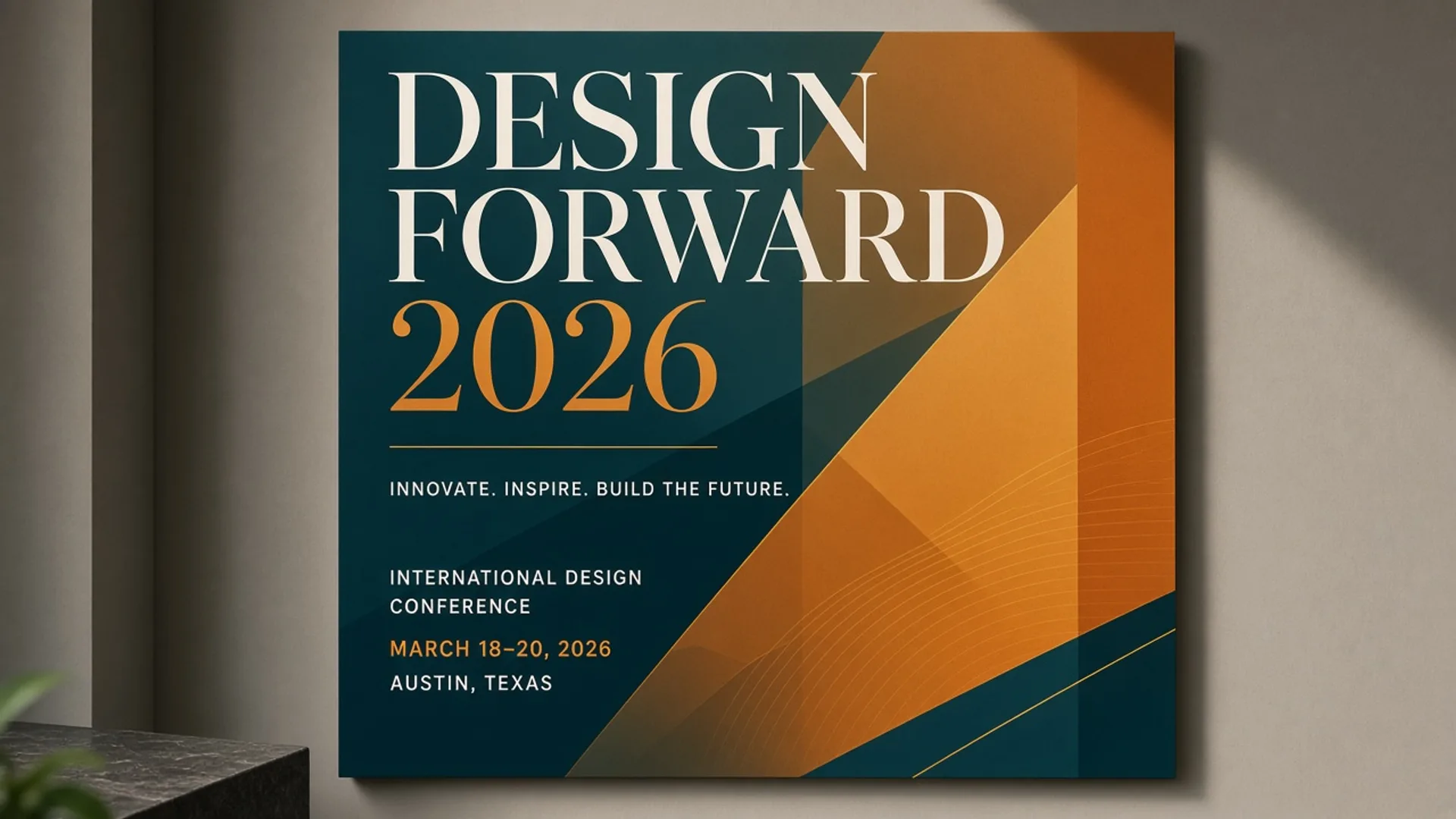
Nano Banana text rendering creates wording as part of the image, such as a poster headline, sign or package name. Provide exact text, placement and hierarchy. The output is still an image; do not assume it contains independently editable text layers.
Short headlines, a few labels and visual concepts can start with generated text. For long paragraphs, dense menus, exact brand labels or final deliverables, proofread the wording and decide whether to typeset afterward. Generating imagery separately from precise text is also a valid workflow.
Provide a short exact headline, subject placement and empty space and define headline and subtitle hierarchy.
Describe the surface, orientation and contrast, then check how curvature and perspective affect readability.
Supply each line rather than asking the model to invent names, numbers or descriptions. Denser content requires more detailed review.
Describe weight, spacing and visual character without treating style instructions as a guarantee of reproducing an exact font.
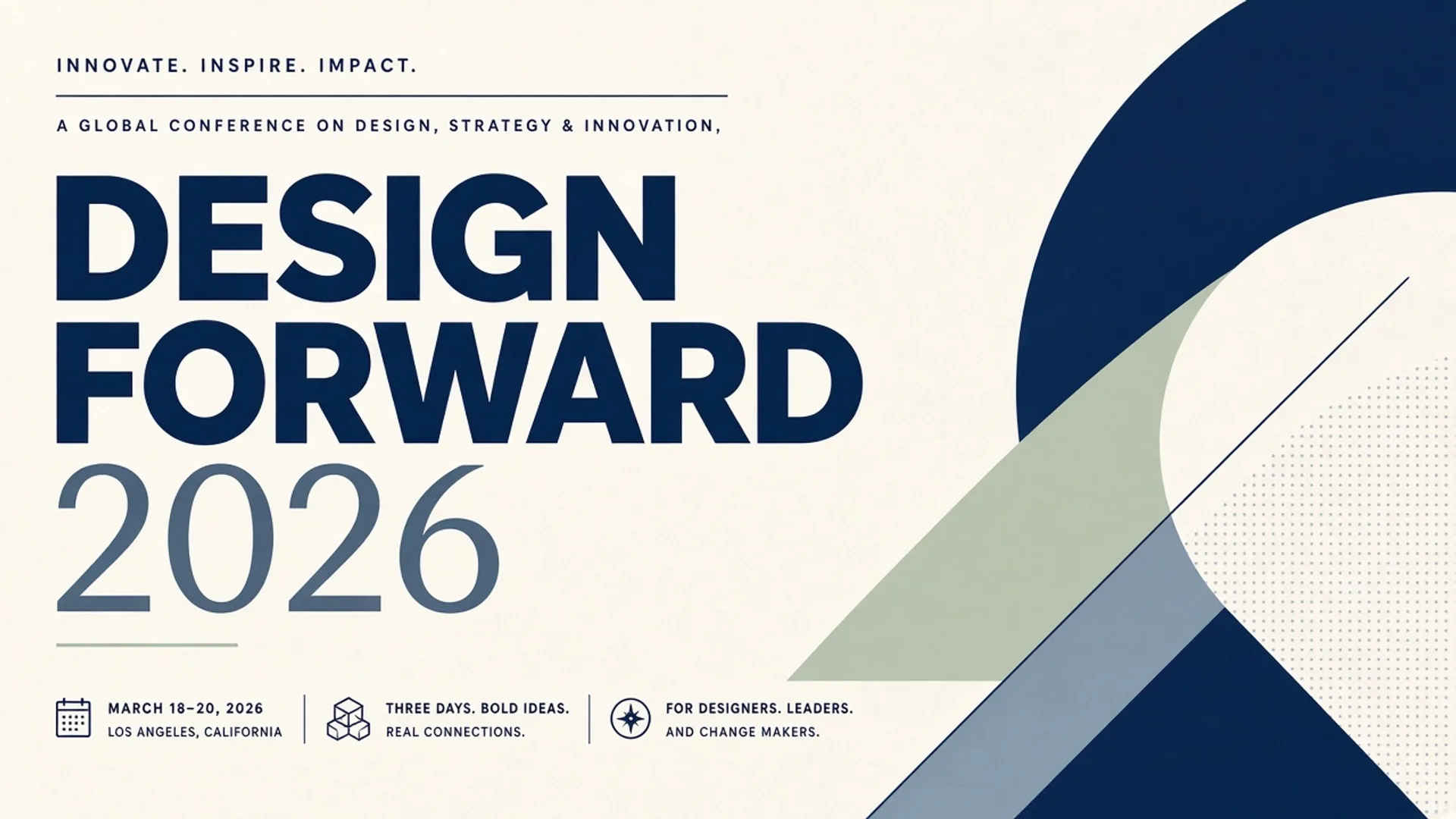
Poster
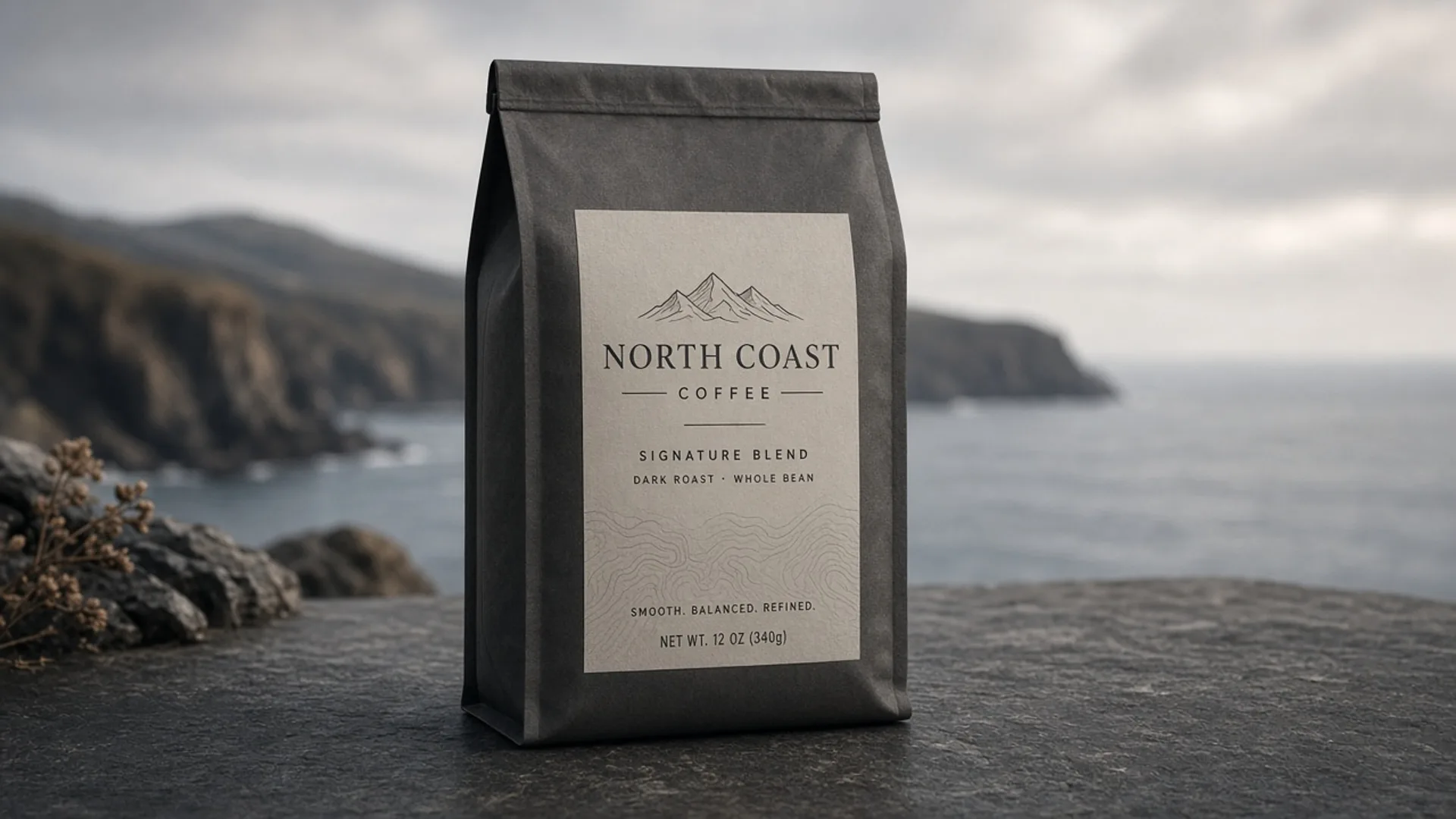
Product Packaging
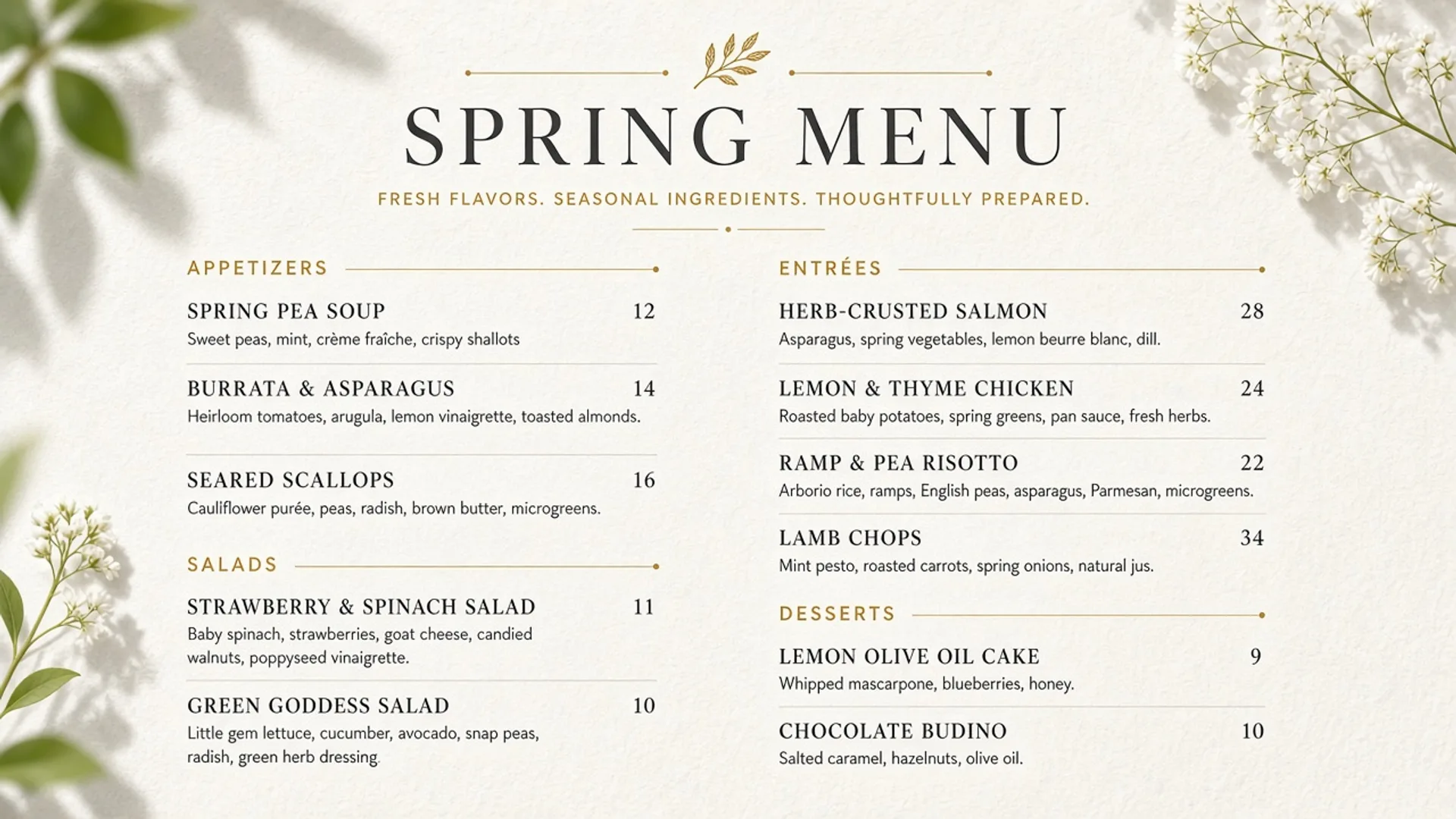
Menu
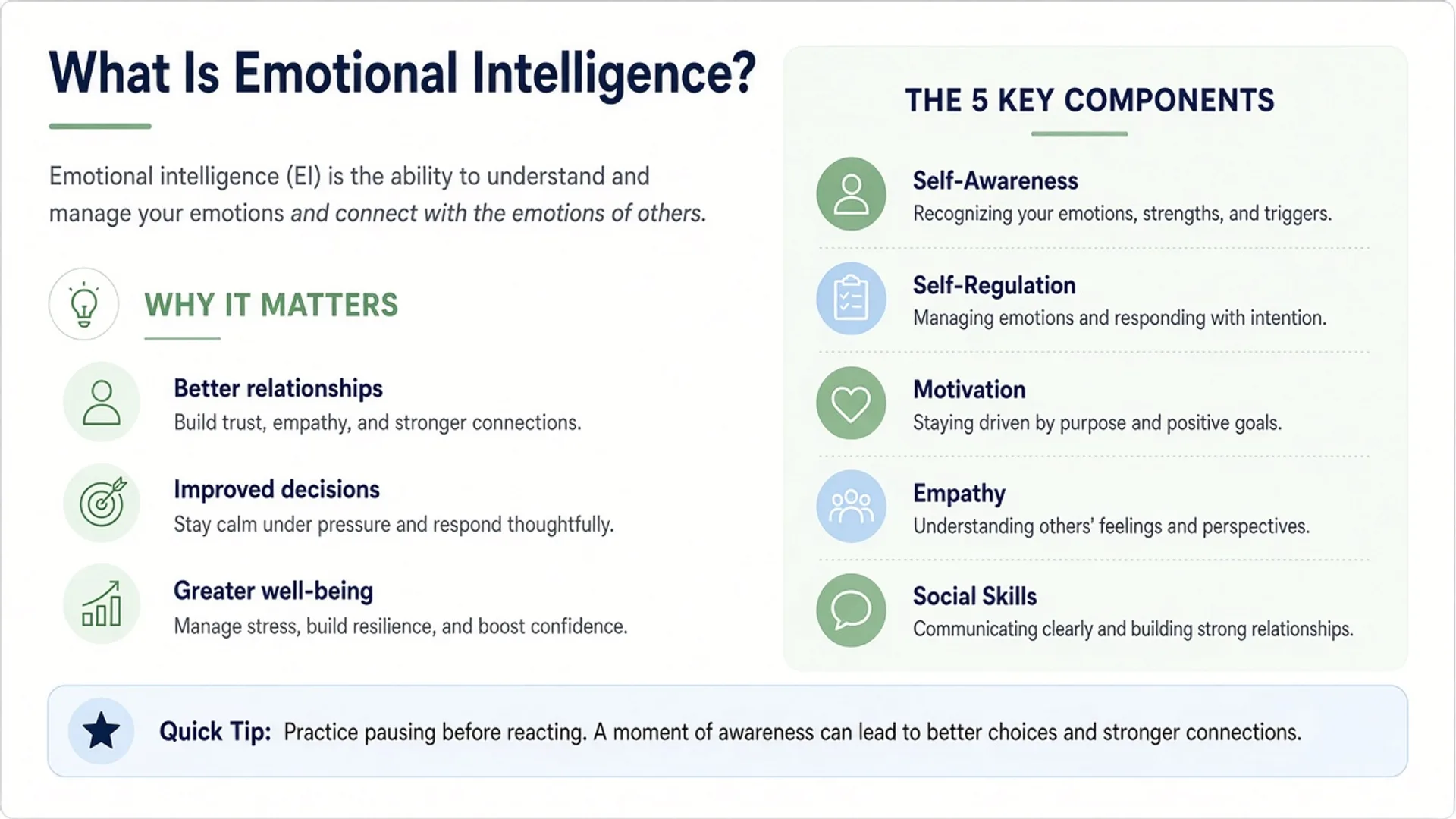
Infographic
Define the image’s purpose and supply the exact wording line by line, separating it from instructions with quotation marks. Set locations for headlines, subtitles and labels and define relative size, contrast and empty space. Begin with limited wording, inspect every character at a readable scale, then add information. If corrections disturb the background or subject, return to a better version or keep the image and typeset precisely in a design tool.
01
02
03
04
Design a poster for a fictional evening garden exhibition. Include only the exact headline “NIGHT GARDEN” and subtitle “Light after dusk,” with no dates, addresses or other wording. Place the headline at the top with a smaller aligned subtitle and abstract plant forms in the lower half. Use dark green, warm white text and small gold accents, with clear contrast and generous space.
Create a clean poster for a fictional book fair. Use the exact Chinese headline “周末书市” and subtitle “旧书与新故事,” with no added or missing characters and no other wording. Put the horizontal headline in the upper half with a smaller subtitle and an original book illustration at the bottom. Use an off-white background, dark blue text and clear hierarchy without covering the illustration’s focal point.
Create a package concept for a fictional coffee product. The front should contain only the exact words “MORNING BLEND,” with no ingredients, origin, weight or brand claims. Place the wording on a clearly visible flat area in a simple warm white and brown design, with soft studio light and no glare obscuring it.
Design a short menu for a fictional cafe. Use the exact title “MENU,” followed only by “Coffee,” “Tea” and “Cocoa” in that order. Add no prices, descriptions or other items. Use light paper, dark text and comfortable line spacing, with the largest title and equal-sized items. Keep decorative patterns away from the wording.
Explore Nano Banana 2.1 for text-in-image and everyday visual work and compare Pro when wording, subjects and complex layout all need control. Do not choose a text-heavy task by speed alone; use the model comparison for details and proofread every result.
Generate new images from natural-language prompts.
Edit existing images with natural-language instructions.
Use reference images to guide subjects, products, characters, styles, and compositions.
Transform image styles while preserving important visual elements.
Combine image text with a full poster composition.
Explore information hierarchy and relationships between text and visuals.
Choose a short headline, define placement and hierarchy, and open the Nano Banana workbench to explore an image with text.